Web Table Exporter
Pick any table on the page and copy or download it as clean CSV or Markdown.
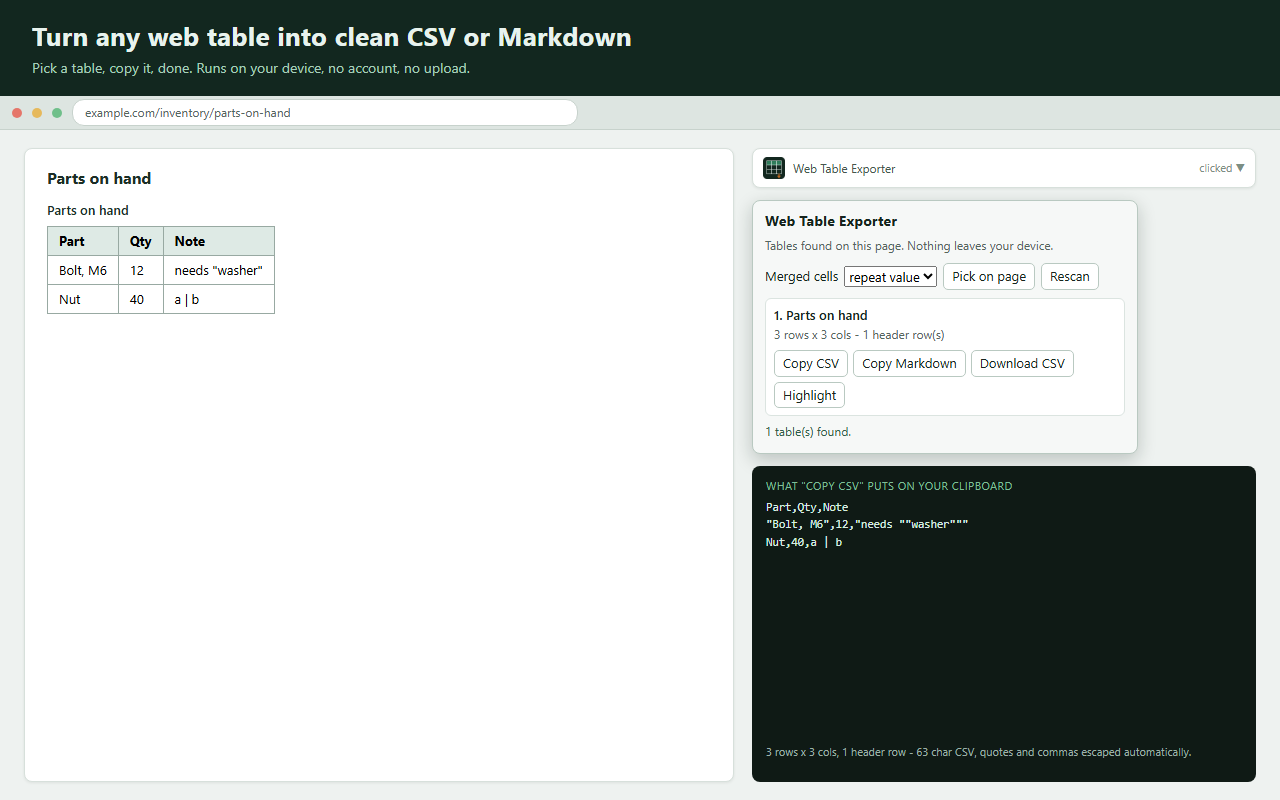
Select a table, get clean data: merged cells handled, headers kept, CSV for spreadsheets or Markdown for notes and wikis. No account, no upload, nothing leaves your machine.
Privacy: runs entirely in your browser, on the active tab, only when you click. No account, no network requests, no data collected.
Get it for Firefox Not on the Chrome Web Store yet
The Firefox version is live on addons.mozilla.org. A Chrome Web Store listing is planned but not published; this page will link it when it exists.
In this guide What Web Table Exporter does How to use it How merged cells are handled What the output looks like Permissions it asks for, and why Limits Privacy Tips Questions and answers
What Web Table Exporter does
Selecting a table with the mouse and pasting it somewhere else usually gives you a mangled block of text. Merged cells shift the columns, hidden rows leak in, and a cell containing a comma breaks a naive CSV. Web Table Exporter reads the table's real structure and hands you a clean rectangle of data, as CSV for a spreadsheet or as Markdown for notes, tickets and wikis.
How to use it
- Open the page that has the table and click the extension's toolbar button.
- The popup lists every visible table on the page with its size in rows and columns. Choose one from the list.
- If the list is long or the tables look alike, press Pick on page and click the table itself. It is outlined so you can see which one you chose. Then click the toolbar button again to reopen the popup, because the export buttons are in the popup.
- Decide how merged cells should be handled: repeat value or leave blank.
- Press Copy CSV, Copy Markdown or Download CSV.
- Press Rescan if the page has loaded more tables since you opened the popup.
How merged cells are handled
A cell that spans several rows or columns is expanded so that every row of the output has the same number of columns. With repeat value, the merged cell's text is written into each slot it covered, which is what you want for filtering and sorting in a spreadsheet. With leave blank, the text is written once and the other slots stay empty, which keeps the look of the original.
What the output looks like
| Format | Details |
|---|---|
| CSV | Follows RFC 4180. Cells containing commas, quotes or line breaks are quoted, quotes inside a cell are doubled, and lines end with CRLF. It opens directly in spreadsheet programs. |
| Markdown | A pipe table. Pipe characters inside cells are escaped, and stacked header rows are merged into a single header line. |
| Both | Whitespace inside cells is tidied and rows hidden on the page are left out. |
Permissions it asks for, and why
| Permission | Why it is needed |
|---|---|
| activeTab | Lets the extension read the tab you have open, starting when you click its button. No other tab or site is reachable. |
| scripting | Lets it run the table reader in that tab, and draw the temporary outline used by Pick on page. |
| clipboardWrite | Lets Copy CSV and Copy Markdown place the result on your clipboard. It cannot read what is already there. |
It asks for no access to all sites, keeps no storage and runs no background script. In its Firefox manifest it declares that it collects no data.
Limits
- It only exports real HTML tables. Layouts built from CSS grids or plain div elements that merely look like tables are not detected.
- It exports what is on the page now. It does not click through pagination or collect a table across several pages.
- It writes CSV and Markdown, not spreadsheet workbook files. CSV opens in spreadsheet programs as it is.
- It does not read tables inside PDF files or images.
- It changes nothing on the page apart from the temporary outline and a brief confirmation message.
Privacy
The conversion happens in the page and in the popup. The result goes to your clipboard or into a file that your own browser saves. Nothing is uploaded and nothing is kept: the picked table is forgotten when you reload or leave the page. Download file names are reduced to letters, digits, dashes and underscores.
Tips
- Choose repeat value when the data is going into a spreadsheet for sorting or filtering, so no row is left without its category.
- Choose leave blank when the table is going into a document and should read the way it did on the page.
- Use Copy Markdown for tickets and wikis. The table arrives already formatted.
- If a table is missing from the list, it is probably not a real table element, or it is hidden.
- On a paginated table, export each page and join the CSV files in your spreadsheet.
Questions and answers
Why does it need clipboard permission?
Only to write. The Copy buttons place the exported text on the clipboard. The extension never reads your clipboard.
Can it export every table on a site automatically?
No. It exports one table that you choose, from the page that is open. It does not crawl.
Does the CSV open in my spreadsheet program?
Yes. It is standard CSV with correct quoting, which spreadsheet programs open directly.
Is the table sent to a server for conversion?
No. The extension makes no network requests.