Regex Find in Page
Find in page with real regular expressions: flags, live count, next and previous, a results list with context, CSV export.
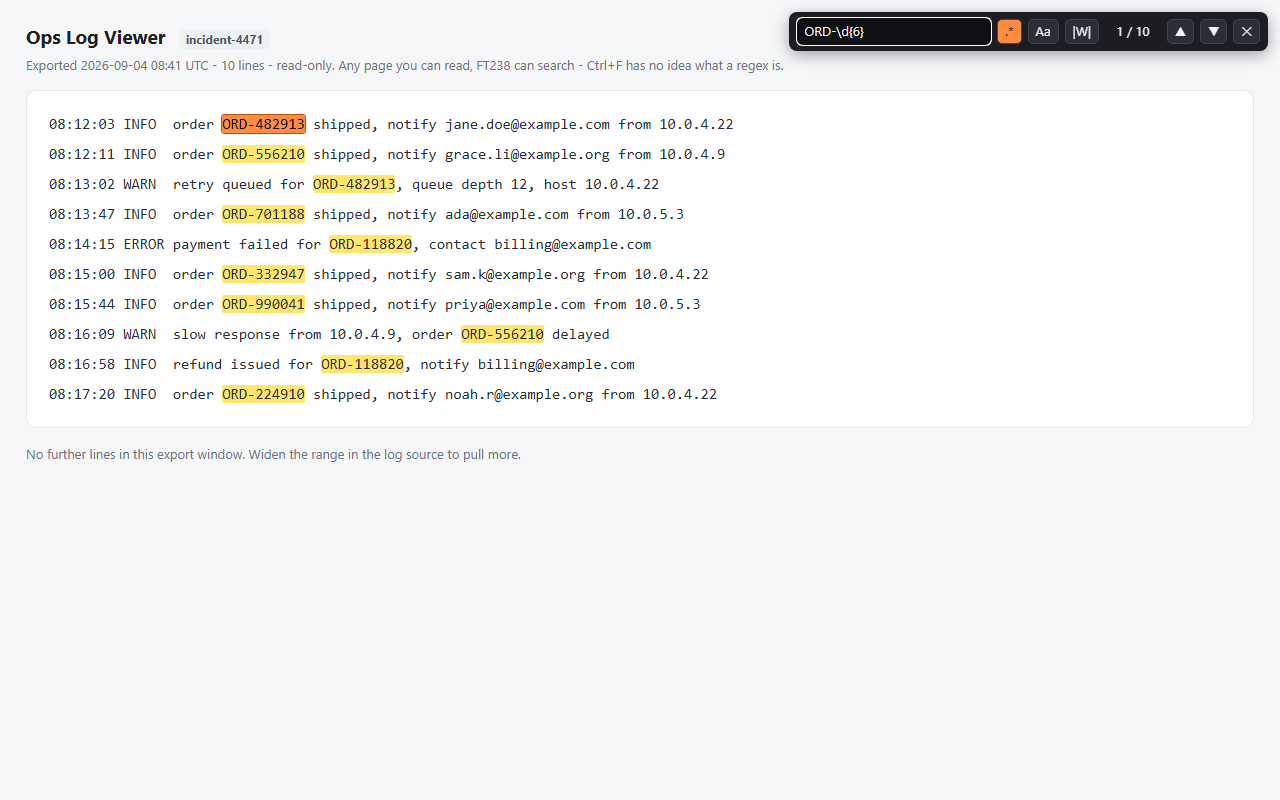
The find bar your browser should have had. Regular expressions with flags and whole-word mode, a live match count, next and previous navigation with highlights, a results list with surrounding context, and export to CSV.
Privacy: runs entirely in your browser, on the active tab, only when you click. No account, no network requests, no data collected.
Get it for Firefox Not on the Chrome Web Store yet
The Firefox version is live on addons.mozilla.org. A Chrome Web Store listing is planned but not published; this page will link it when it exists.
In this guide What Regex Find in Page does How to use it The four toggles and the Bar button Patterns to try Permissions it asks for, and why Limits Privacy Tips Questions and answers
What Regex Find in Page does
The find bar built into a browser searches for literal text and nothing else. It cannot answer a question like how many order numbers of the form ORD followed by six digits are on this page, and what are they. Regex Find in Page can. It searches the visible text of the page with a regular expression, highlights every match, lets you step through them and exports the list.
Matches are found in the text as a reader sees it. A phrase that is split across bold or link markup is still one phrase to this search, which is a case where an ordinary find can fail.
How to use it
- Click the toolbar button and type in the search box. Matching starts a moment after you stop typing.
- Set the toggles you need. They are described in the table below.
- Read the counter, which shows the current match and the total, for example 3 / 41.
- Press Next and Prev to move between matches. The page scrolls to each one, and stepping past the last match wraps to the first.
- Scroll the results list in the popup to see the matches with about 30 characters of surrounding text on each side. The list holds the first 300.
- Press Copy CSV to copy all matches, with their context, to the clipboard. The CSV is not cut at 300.
- Press Clear to remove the highlights. The page is put back exactly as it was.
The four toggles and the Bar button
| Button | Effect |
|---|---|
| .* | Treat the input as a regular expression. When it is off, the input is searched as plain text. |
| Aa | Match case. When it is off, the search ignores capitalization. |
| |W| | Whole word. Matches must begin and end at word boundaries. |
| ^$ | Multiline. The anchors ^ and $ match at line breaks as well as at the start and end of the text. |
| Bar | Opens a floating search bar inside the page that keeps working after the popup has closed. |
Patterns to try
| Pattern | Finds |
|---|---|
| ORD-\d{6} | Order numbers such as ORD-204518 |
| \b\d{4}-\d{2}-\d{2}\b | Dates written as year, month, day |
| error|warning|failed | Any of three words, useful in logs |
| [\w.+-]+@[\w-]+\.[\w.]+ | Text shaped like an email address |
| https?://\S+ | Web addresses written out in the text |
Turn the .* toggle on for all of these. If a pattern is not valid, the popup shows the error message from the regular expression engine instead of a count.
Permissions it asks for, and why
| Permission | Why it is needed |
|---|---|
| activeTab | Gives the extension the page in front of you once you open its popup there. It holds no permission for any website in advance. |
| scripting | Lets it run the search in that tab: collecting the visible text, wrapping matches in highlight marks and showing the floating bar. |
Nothing else is requested. There is no storage permission, so patterns are not remembered, and no background script. The Firefox package declares that no data is collected.
Limits
- It searches visible text only. Hidden elements and the contents of text areas, drop-down lists, scripts and style blocks are skipped.
- Frames from another site cannot be searched. That is a browser security boundary.
- The browser's built-in PDF viewer is not supported.
- It is read-only. There is no replace.
- A single search returns at most 5,000 matches. When it stops there, the counter shows a plus sign after the total.
- The results list in the popup shows the first 300 matches. Next, Prev and Copy CSV still cover all of them.
- There is no history and there are no saved patterns.
Privacy
The extension has no network access of any kind. Page text is read into memory in the tab, matched and discarded when you press Clear or close the tab. Nothing is written to browser storage or to disk. The CSV goes to your clipboard and nowhere else.
Tips
- Leave the .* toggle off for ordinary searches. Punctuation such as a dot or a bracket is then matched literally and needs no escaping.
- Use the whole word toggle to find a short word like id without also matching it inside longer words.
- Count things by pattern. The total in the counter is often the answer you wanted, with no need to step through the matches.
- Open the floating bar for long reading sessions, so the search stays available while the popup is closed.
- Paste the CSV into a spreadsheet to sort or remove duplicates from what you found.
Questions and answers
Do I have to know regular expressions to use it?
No. With the .* toggle off it is a plain text search with a match count, a results list and export.
Can it replace text on the page?
No. It is read-only by design.
Does it change the page?
Only by adding highlight marks while a search is active. Clear removes them and restores the page.
Does it remember my searches?
No. It has no storage permission and keeps no history.