Page Font Inspector
Inventory every font family, weight, style and size a page renders, plus its @font-face sources.
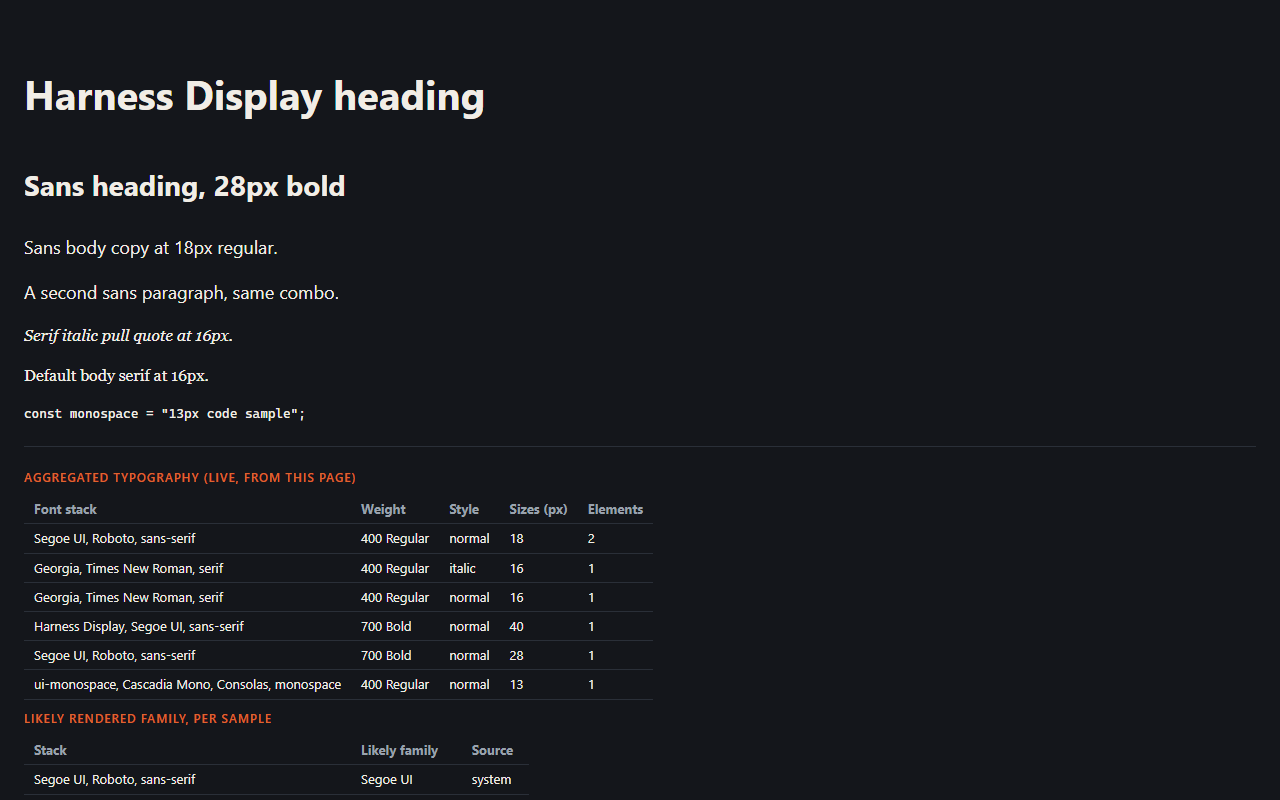
A typography audit in one click: a deduplicated inventory of every font stack the page actually uses, the @font-face rules behind them, and a click-to-inspect mode for a single element.
Privacy: runs entirely in your browser, on the active tab, only when you click. No account, no network requests, no data collected.
Get it for Firefox Not on the Chrome Web Store yet
The Firefox version is live on addons.mozilla.org. A Chrome Web Store listing is planned but not published; this page will link it when it exists.
In this guide What Page Font Inspector does How to use it Reading the results Permissions it asks for, and why Limits Privacy Tips Questions and answers
What Page Font Inspector does
Typography drift is invisible one element at a time. Developer tools show the computed style of whatever you have selected, but nothing tells you that a page ships eleven different combinations of family, weight and size, or that two of them differ by a single pixel. Page Font Inspector builds that picture in one click.
It scans the visible text on the page and produces a deduplicated inventory: each distinct font stack with its weight and style, how many elements use it and the set of sizes it appears at. Alongside that it lists the page's font faces and where their files are declared to come from.
How to use it
- Open the page and click the extension's toolbar button. The scan starts as soon as the popup opens.
- Read Typography in use: one row per combination of font stack, weight and style, with an element count and the sizes used.
- Read Font faces: the fonts the page has registered, merged with the src declarations of its @font-face rules.
- Press Copy Markdown to put the whole audit on the clipboard as tables.
- Press Inspect element to examine one element. Move over the page, where a hover outline follows the pointer, and click. A panel pinned on the page shows that element's full computed typography and the family most likely to have been used to draw it.
- Press Rescan after the page changes, for example after opening a menu or switching a theme.
Reading the results
A font stack is the full list a stylesheet asks for, such as a web font followed by system fallbacks. The browser uses the first one it can. The inspect panel's likely rendered family is a best effort: it compares the stack with the web fonts the page has actually loaded. It is a strong hint, not a measurement of the pixels.
A long list of sizes next to one stack usually means sizes were set by hand in many places. Two rows with the same stack and different weights are two weights in use, and each is worth checking against the font faces the page has loaded.
Permissions it asks for, and why
| Permission | Why it is needed |
|---|---|
| activeTab | Gives the extension the tab you clicked it on, for as long as you are using it there. It cannot reach other tabs or sites. |
| scripting | Lets it run the scanner in that tab, which reads computed font properties and stylesheet rules and draws the inspect outline and panel. |
Those two are everything. There is no host permission, no storage permission and no background script, and the Firefox manifest states that no data is collected.
Limits
- The scan covers up to 4,000 text-bearing elements. The popup tells you when the cap was reached.
- Stylesheets served from another origin cannot be read by a page script, so their @font-face rules may be missing. The extension counts those sheets and reports them as inaccessible instead of fetching them again.
- Only the top document is scanned. Frames and shadow DOM are not entered.
- It does not identify fonts from their shapes. It reports what the page's own CSS and font registry declare.
- Font file addresses are listed, never downloaded.
Privacy
The scan runs in the tab, the result is passed to the popup in memory, and it is gone when the popup closes. There is no telemetry and no remote endpoint. The only thing that ever leaves the extension is the Markdown you choose to copy.
Tips
- Scan the busiest template of a site first, such as an article page. It usually shows the most combinations.
- Look for near-duplicate sizes, like 15 and 16 pixels on the same stack. They are the cheapest clean-up.
- Compare Font faces with Typography in use. A face that is declared but appears in no row may be a download nobody needs.
- Use Inspect element on text that looks wrong to see whether a fallback font was used.
- Paste the Markdown into a design review or a pull request so the before and after can be compared.
Questions and answers
Does it tell me the name of any font I point at?
It tells you what the page's CSS requests and which loaded web font most likely rendered it. It does not recognize fonts from their appearance.
Why are some @font-face sources missing?
They are in a stylesheet from another origin, which scripts are not allowed to read. The popup reports how many sheets were inaccessible.
Does it scan automatically?
No. A scan runs only when you open the popup or press Rescan.
Does it look inside iframes?
No. This version scans the top document only.